Digital Certificate
- What is a digital certificate
- A digital identity produced and signed by a certificate authority (CA)
- Analogy: passport or driver's license
- Primary purposes
- Authentication
- Encryption and decryption
- Integrity
- How does FortiGate use certificates to identify devices and people?
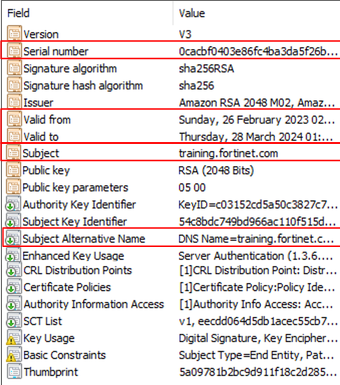
- The subject and Subject Alternative Name fields in the certificate identify the device or person associated with the certificate
- FortiGate uses the X.509v3 certificate standard
Why Does FortiGate Use Digital Certificates?
- Inspection
- SSL/SSH and HTTPS traffic inspection
- Inbound or outbound traffic through FortiGate
- Traffic to and from FortiGate
- Privacy
- Ensure privacy for exchanges with other devices, such as FortiGuard
- Authentication
- User authentication for network access
- User authentication for VPN connection
- As second-factor authentication for FortiGate administrator
How Does FortiGate Trust Certificates?
- FortiGate does the following checks against a certificate before trusting it and using it:
- Revocation check
- CA certificate possession
- FortiGate uses the Issuer value to determine if FortiGate possesses the corresponding CA certificate
- Without the corresponding CA certificate, FortiGate cannot trust the certificate
- Validity dates
- Digital signature validation
- The verification of the digital signature on the certificate must pass
FortiGate Verifies a Digital Signature
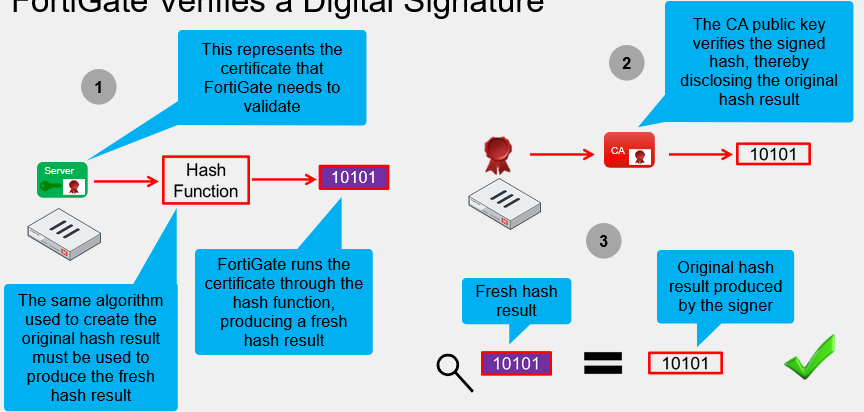
- So, pretty much, there is a digital signature on the certificate
- FortiGate will hash the certificate
- Then, it will use the CA public on the digital signature to get the same hash
- If they are the same, then it is valid
Encrypted Traffic with No SSL Inspection
- Cloaked by encryption, viruses can pass through network defenses unless you enable full SSL inspection
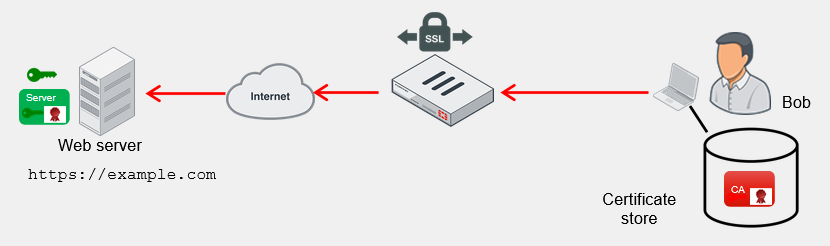
- Unknown to Bob, example.com has been infected with a Virus
- It passes through FortiGate undetected because SSL inspection was not enabled
- Full SSL inspection, or deep inspection, inspects all sessions
SSL Inspection Modes
-
SSL certificate inspection
- Relies on extracting the FQDN of the URL from either
- TLS extension server name indication (SNI)
- SSL certificate Subject or SAN fields
- Use for web filtering or application control
- FortiGate does not decrypt the traffic
- Relies on extracting the FQDN of the URL from either
-
Full SSL inspection
- FortiGate acts as a man-in-the-middle proxy
- Maintains two separate SSL sessions - client-to-FortiGate and FortiGate-to-server
- FortiGate encrypts and decrypts packets using its own keys
- FortiGate can inspect the traffic
Full SSL Inspection (SSL Deep Inspection)
- Protect from attacks that use commonly used SSL-encrypted protocols
- HTTPS
- SMTPS
- POP3S
- IMAPS
- FTPS
- FortiGate impersonates the recipient of the originating SSL session
- Impersonates - decrypts
- Inspects - blocks threats
- Re-encrypts and sends to real recipient
SSL Inspection Profile Configuration
-
Customized SSL/SSH inspection profile
- Based on deep inspection profile
- User defined
-
Security Profiles -> SSL/SSH Inspection
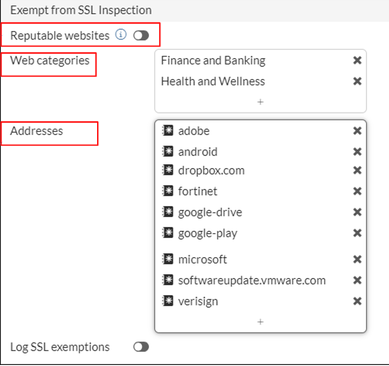
Exempting Sites from SSL Inspection
-
Why exempt?
- Problems with traffic
- Legal issues
-
Security Profiles -> SSL/SSH Inspection
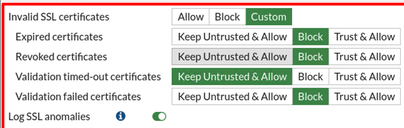
Invalid Certificates
-
FortiGate can detect invalid certificates for a variety of reasons
- Invalid certificates produce security warnings due to problems with the certificate details
-
FortiGate can Keep Untrusted & Allow, Block, or Trust & Allow invalid certificates
-
Selecting Custom allows the user to select the action for each reason
-
Security Profiles -> SSL/SSH Inspection
Untrusted SSL Certificates Setting
- Allow, block, or ignore untrusted certificates (only available if Multiple Clients Connecting to Multiple Servers is selected)
- Allow: sends the browser an untrusted temporary certificate when the server certificate is untrusted
- User knows site is bad. Can still browse
- Block: blocks the connection when an untrusted server certificate is detected
- User knows site is bad. Cannot still browse
- Ignore: uses a trusted FortiGate certificate to replace the server certificate always, even when the server certificate is untrusted
- User does not know site is bad. Can still browse
- Allow: sends the browser an untrusted temporary certificate when the server certificate is untrusted
FortiGate Self-Signed CA Certificates
-
By default, FortiGate uses a self-signed encrypting SSL CA certificate
Fortinet_CA_SSL- Not listed with an approved CA, therefore, by default, not trusted
-
To avoid warnings on user devices
- Install CA certificate
Fortinet_CA_SSLas a trusted CA on user devices - Install a company CA certificate on FortiGate for SSL full inspection
- Install CA certificate
Full SSL Inspection - Certificate Requirements
- Full SSL inspection requires that FortiGate act as a CA to generate an SSL private key and certificate
- The CA certificate requires these two extensions to issue certificates:
- cA=True
- keyUsage=keyCertSign
- The CA certificate requires these two extensions to issue certificates:
- FortiGate can use:
- The preloaded, self-signed
Fortinet_CA_SSLcertificate - A subordinate certificate issued by an internal CA
- The preloaded, self-signed
- The root CA certificate must be imported into the client machines
Full SSL Inspection on Inbound Traffic
-
A user from the internet attempts to connect to a protected server
-
The SSL connection is split into two, both terminating at FortiGate
- FortiGate proxies the SSL traffic
- The server certificate, private key, and chain of certificates must be installed on FortiGate
- FortiGate presents the signed certificate to the user on behalf of the server
-
Security Profiles -> SSL/SSH Inspection
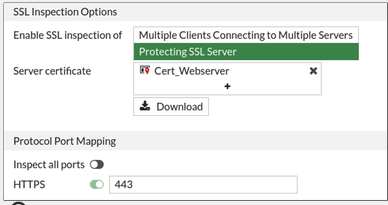
- The inspection profile allows multiple certificates defined in one profile for multiple servers
- FortiGate acts like it would if the connection targeted one server; however, it hits a shared external IP address:
- Certificate selection to a particular server is based on the SNI on each request, compared against the CN on the certificate
- If no matching SNI, FortiGate selects the first certificate on the list
Applications and SSL Inspection
- Any SSL application might be impacted by SSL inspection (not just the browser)
- The solution depends on the application security design
- Consider other SSL-based protocols such as FTPS, SMTPS, and STARTTLS (not just HTTPS)
- Microsoft Outlook 365 for Windows error after enabling full SSL inspection:
- Solution: import the CA certificate into the Windows certificate store
- Dropbox for Windows error after enabling full SSL inspection:
- Solution: exempt Dropbox domains from SSL inspection
Applying an SSL Inspection Profile to a Firewall Policy
-
For SSL inspection
- Define SSL inspection profile
- Allow the traffic with a firewall policy
- Apply security profiles
- Apply SSL inspection
-
Combine SSL inspection with security profiles
-
With the no-inspection SSL profile there is no SSL or SSH traffic inspection
- No web filtering
- No application control
-
The decrypted traffic mirror, from my understanding, sends decrypted traffic to a different interface
Certificate Warnings During Full SSL Inspection
- During full SSL inspection, browsers might display a warning because they do not trust the CA
- To enable a smooth user experience and prevent certificate warnings, do one of the following:
- Use the
Fortinet_CA_SSLcertificate- and import the FortiGate CA root certificate into all browsers
- Use an SSL certificate issued by a private CA
- This CA may already be available in the device browsers
- Use the
- This is not a FortiGate limitation, but a consequence of how SSL and digital certificates work
Certificate Warnings on the FortiGate GUI
- By default, FortiGate uses a self-signed SSL certificate
- Not listed with an approved CA, therefore, by default, not trusted
- Used for HTTPS GUI access
- Available options to avoid those warnings:
- Accept the warning at first connection
- Use the
Fortinet_GUI_Serercertificate and import theFortinet_CA_SSLcertificate - Use a certificate signed by a recognized CA
Download Private CA Certificates from FortiGate
- Download
Fortinet_CA_SSLprivate CA certificate- System -> Certificates
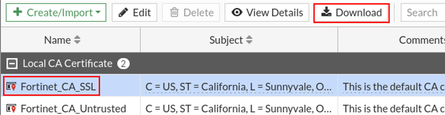
- Generate a file
Fortinet_CA_SSL.cer - Transfer it to any computer that requires it
Import Private CA Certificates into Endpoints
-
Import
Fortinet_CA_SSLprivate CA certificate into the user device- Exact process depends on the OS
- Example for Linux and Firefox
- Open the browser setting menu
- Open the certificate store
- Import the certificates as a CA
-
Firefox:
- Settings -> Privacy & Security -> Certificates
Import a CA Certificate on FortiGate
-
Import company-owned private CA or CA signed by a certificate authority
-
System -> Certificates -> Create/Import -> CA Certificate
-
Import private certificates
-
Used for:
- FortiGate GUI
-
Import options:
- Certificate after a CSR request
- Certificate and associated key file
- PKCS#12 certificate
-
System -> Certificates -> Create/Import -> Certificate
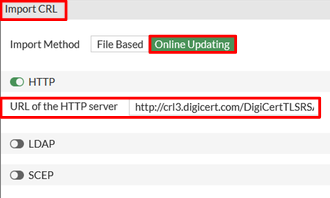
Import CRLs on FortiGate
-
CRLs are lists of revoked certificates
-
Published by CA administrator and updated periodically
-
Import on FortiGate
- Online updating
- HTTP
- LDAP
- SCEP
- File import
- Online updating
-
System -> Certificates -> Create/Import -> CRL
-
System -> Certificates
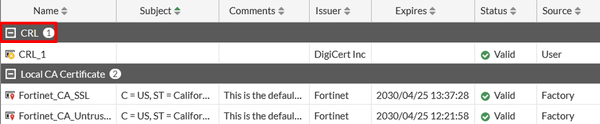
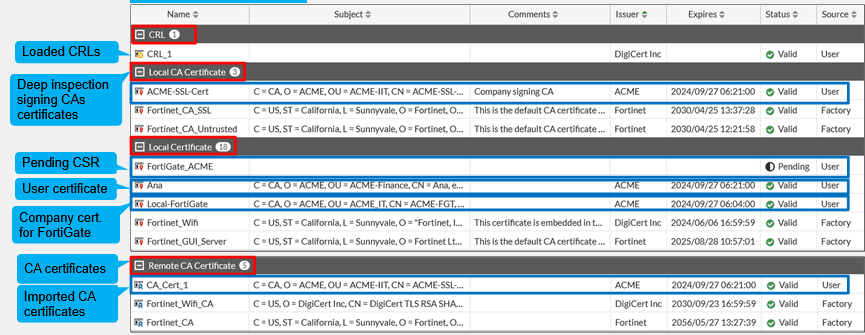
FortiGate Certificate Store
- Central location for CA, certificates, and CRL on FortiGate
- System -> Certificates