Firewall Authentication
- Includes the authentication of users and user groups
- It is more reliable than just IP address and device-type authentication
- Users must authenticate by entering valid credentials
- After FortiGate identifies the user or device, FortiGate applies firewall policies and profiles to allow or deny access to each specific network resource
FortiGate Methods of Firewall Authentication
- Local password authentication
- Username and password stored on FortiGate
- Server-based password authentication (also called remote password authentication)
- Password stored on a POP3, RADIUS, LDAP, or TACACS+ server
- Two-factor authentication
- Enabled on top of an existing method
- Requires something you know and something you have (token or certificate)
Local Password Authentication
- User accounts stored locally on FortiGate
- Works well for single FortiGate installations
- User & Authentication -> User Definition
Server-Based Password Authentication
- Accounts are stored on a remote authentication server
- Administrators can do one of the following:
- Create an account for the user locally and specify the server to verify the password
- Add the authentication server to a user group
- All users in that server become members of the group
Server-Based Password Authentication - Users
-
Create user accounts on FortiGate
- Select remote server type and point to preconfigured remote server
- Add user to a group
-
Add the remote authentication server to user groups
-
User & Authentication -> User Definition (can specify a user as LDAP, RADIUS, TACACS, etc)
- This is option one above
-
User & Authentication -> User Groups
- Adding a remote server as members of a user group
- The remote server must be configured prior
LDAP Overview
- LDAP is an application protocol for accessing and maintaining distributed directory information services
- TCP/389 (LDAP) or TCP/636 (LDAPS)
- LDAP maintains authentication data, including:
- Departments, people (and groups of people), passwords, email addresses, and printers
- LDAP consists of a data-representation scheme, a set of defined operations, and a request-and-response network
- Binding is the operation in which the LDAP server authenticates the user
LDAP Structure
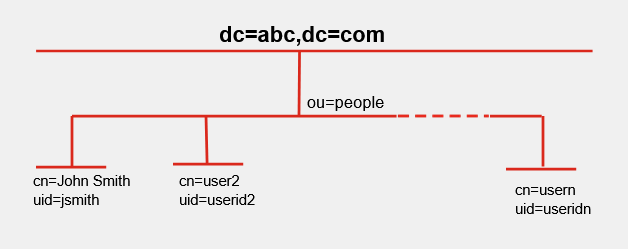
-
dc = domain component
- abc.com becomes dc=abc,dc=come
-
ou = organizational unit
-
cn = user group
-
FortiGate must know the DN, which is ou=people,dc=abc,dc=com
-
The authentication request must specify the user account entry (cn)
- We often provide the UID instead of the CN
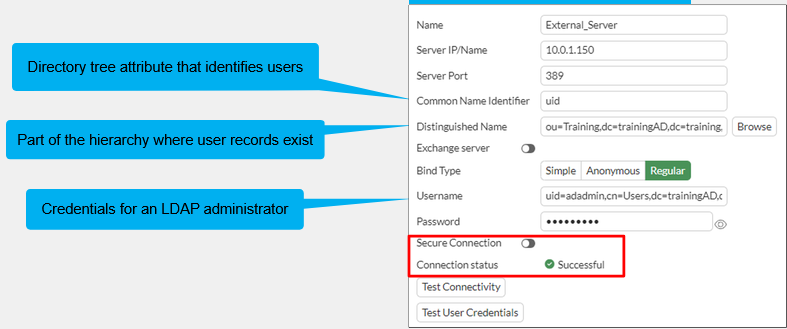
Configuring an LDAP Server on FortiGate
- User & Authentication -> LDAP Servers
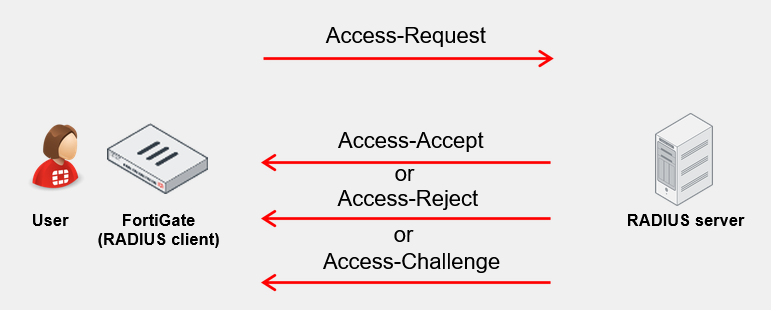
RADIUS Overview
- RADIUS is a standard protocol that provides AAA services
Configuring a RADIUS Server on FortiGate
- User & Authentication -> RADIUS Servers
- Must match an IP/FQDN and the RADIUS secret for connectivity
- FortiGate must be listed as a client on the RADIUS server
Testing the LDAP and RADIUS Query on the CLI
diagnose test authserver ldap <server_name> <username> <password>
diagnose test authserver radius <server_name> <scheme> <user> <password>
Two-Factor Authentication
- Strong authentication that improves security by preventing attacks associated with the use of static passwords alone
- Requires two independent methods of identifying a user:
- Something you know, such as a password or PIN
- Something you have, such as a token or certificate
- A one-time password (OTP) can be used one time only
- OTPs are more secure than static passwords
- Available on both user and administrator accounts
- The user or user group is added to a firewall policy in order to authenticate
- Methods of OTP delivery include:
- FortiToken 200 or FortiToken Mobile
- Generates a six-digit code every 60 seconds base on a unique seed and GMT time
- Email or SMS
- An OTP is sent to the user's email or SMS
- Email or SMS must be configured on the user's account
- FortiToken mobile push
- Supports two-factor authentication without requiring user to enter code
- FortiToken 200 or FortiToken Mobile
- NTP server recommended!
FortiTokens
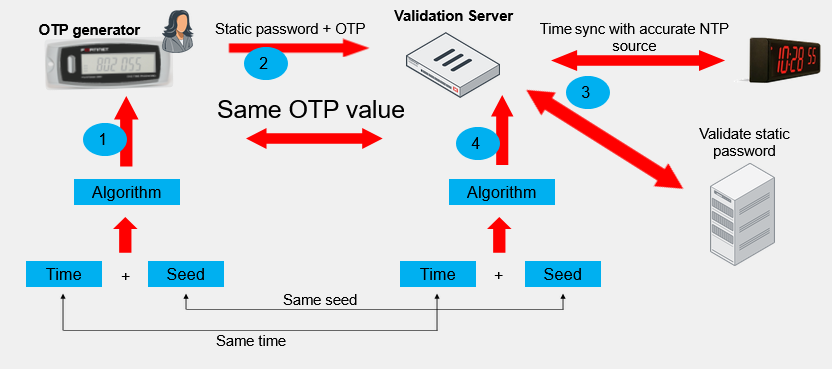
Assigning a FortiToken to a User
- User & Authentication -> FortiTokens -> Create new
- Enable Two-factor Authentication on a user and select the registered FortiToken
- Cannot use the same FortiToken on different Fortigates
- Unless you are using FortiAuthenticator
Authentication Methods
- Active
- User receives a login prompt
- User manually enters credentials to authenticate
- POP3, LDAP, RADIUS, Local, and TACACS+
- Passive
- User does not receive a login prompt from FortiGate
- Credentials are determined automatically
- Method varies depending on type of authentication used
- FSSO, RSSO, and NTLM
Firewall Policy - Source
- Firewall policies can use user and user group objects to define the source. These objects include:
- Local firewall accounts
- External (remote) server accounts
- PKI (certificate) users
- FSSO users
- Anyone who belongs to the group and provides correct information will have successful authentication
Protocols
-
A firewall policy must allow a protocol in order to show the authentication dialog that is used in active authentication:
- HTTP, HTTPS, FTP, Telnet
-
All other services are not allowed until the user has authenticated successfully through one of the protocols listed above
Firewall Policy - Service
- **DNS traffic can be allowed if user has not been authenticated yet
- Hostname resolution is ofter required by the application layer protocol (HTTP/HTTPS/FTP/Telnet) that is used to authenticate
- DNS service must be explicitly listed as a service in the policy

Mixing Policies
- Enabling authentication in policies doesn't always mean users must actively authenticate. An open policy at the end of the list can allow passive or no-prompt authentication

-
Three options:
- Enable authentication on every policy that could match the traffic
- Enable the authentication on demand option (CLI only)
- Enable a captive portal on the ingress interface for the traffic
-
If login cannot be determined passively, then FortiGate uses active authentication
- FortiGate does not prompt the user for login credentials when it can identify the user passively
- By default, active authentication is intended to be used as a backup when passive authentication fails
Active Authentication Behavior
- Option 1: Enable authentication on every policy that could match the traffic
- All firewall policies must have authentication enabled (active or passive)
- Option 2: Enforce authentication on-demand option:
- CLI option only:
config user setting
set auth-on-demaind <always|implicitly>
-
Provides more granular control
-
Authentication is enabled at a firewall policy level
-
You must place passive authentication policies on top of active authentication policies
-
Option 3: Enable a captive portal on the ingress interface for the traffic
- Authentication happens at an interface level
- Traffic is not allowed without valid authentication unless it matches an exemption
- All users are prompted for authentication before they can access any resource
- Network -> Interfaces -> Edit Interface -> Security Mode -> Captive Portal
Authentication Timeout
config user setting
	set auth-timeout-type [idle-timeout | hard-timeout | new-session]
end
-
Timeout specifies how long a user can remain idle before the user must authenticate again
- Default is 5 minutes
-
Three options for behavior:
- Idle (default): no traffic for that amount of time
- Hard: authentication expires after that amount of time, regardless of activity
- New Session: authentication expires if no new session is created in that amount of time
Monitoring Users
- Dashboard -> Assets & Identities -> Firewall Users
- Also used to terminate authenticated sessions