What Are Firewall Policies?
- Policies define:
- Which traffic matches them
- How to process matching traffic
- When a new IP session packet arrives, FortiGate:
- Starts at the top of the list to look for a policy match
- Applies the first matching policy
- Implicit Deny
- No matching policy? FortiGate drops the packet
Components and Policy Types
-
Objects used by policies:
- Interface and zone
- Address, user, and internet service objects
- Service definitions
- Schedules
- NAT rules
- Security profiles
-
Policy Types
- Firewall Policy (IPv4, IPv6)
- Firewall Virtual Wire Pair Policy (IPv4, IPv6)
- Proxy Policy
- Multicast Policy (IPv4, IPv6)
- Local-in Policy
- DoS Policy (IPv4, IPv6)
- Traffic Shaping
Configuring Firewall Policies
-
Mandatory policy name when creating on GUI
- Can relax the requirement by enabling
Allow Unnamed Policies- System -> Feature Visibility -> Allow Unnamed Policies
- Can relax the requirement by enabling
-
Flat GUI view allows:
- Select by clicking
- Drag-and-drop
config firewall policy
	edit 1
		set name "Training"
		set uuid 2204966e-47f7-51...
How Are Policy Matches Determined?
-
Incoming and outgoing interfaces
-
Source: IP address, user, internet services
-
Destination: IP address or internet services
-
Services (protocol)
-
Schedules
-
Then action: Accept or Deny
Example - Logical Operations for Firewall Policies
- Source and Destination Logic
- Click the
Show/Hide Logicbutton within the policy field - BTW, I didn't see this on my FortiGate. May be outdated
- Click the
- Essentially, each field is a logical AND and the values in each field is an OR
- source = (PC1 OR PC2) AND destination = (PC3 AND PC4) AND etc.
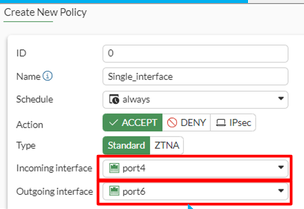
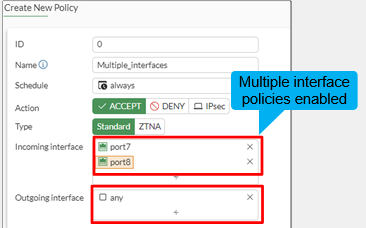
Selecting Multiple Interfaces or Any Interface
- Disabled by default
- Cannot select multiple interfaces or any interface in firewall policy on the GUI
- System -> Feature Visibility -> Multiple Interface Policies to toggle
- Can be made visible in the GUI using above
Matching by Source
- Must specify at least one source (ISDB)
- IP address or range
- Subnet (IP/netmask)
- FQDN
- Geography
- Dynamic
- Fabric connector address
- MAC address range
- May specify:
- Source user - individual user or user group
- This may refer to:
- local firewall accounts
- Accounts on a remote servire (via AD, LDAP, RADIUS)
- FSSA
- PKI-authenticated user (via personal certificate)
- ISDB and geography are valid with a valid support contract
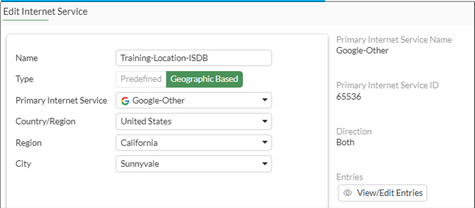
Geographic-Based ISDB
- By default, ISDB updates are enabled
- Allows users to define ISDB objects based on a country, region, and city
- Objects can be used in firewall policies for more granular control over the location of the parent ISDB object
- Policy & Objects -> Internet Service Database
Example - Matching Policy by Source
- Matches by a source address, user
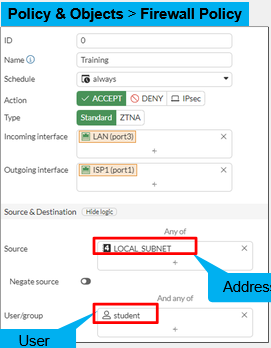
- Source as ISDB objects
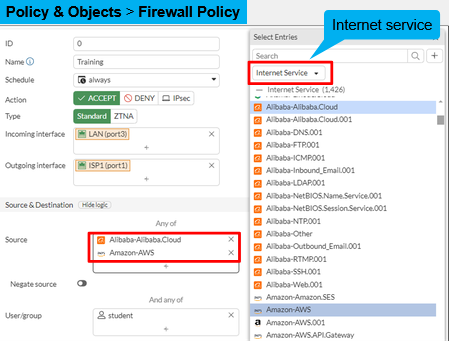
Matching by Destination
- Like source, destination criteria can use:
- Address objects:
- Subnet (IP or netmask)
- IP address or address range
- FQDN
- DNS query used to resolve FQDN
- Geography
- Country defines addresses by ISP geographical location
- Database updated periodically through FortiGuard
- Dynamic
- Fabric connector address
- ISDB objects
- Address objects:
Security Profiles
- Firewall policies limit access to configured networks
- Security profiles configured in firewall policies protect your network by:
- Blocking threats
- Controlling access to certain applications and URLs
- Preventing specific data from leaving your network
Policy ID
- Firewall policies are ordered primarily on a top-down basis
- Policy IDs are identifiers:
- The system assigns a policy ID when the rule is created
- The ID number never changes as rules move higher or lower in the sequence
config firewall policy
	edit <policy_id>
end
config firewall policy
	edit 2
		set name "DMZ"
		...
	next
	edit 1
		set name "Block FTP"
Policy List - Interface Pair View and By Sequence
- Interface Pair View
- Lists policies by ingress and egress interfaces (or zone) pairings
- Sequence Group View and By Sequence
- If policies are created using multiple source and destination interfaces or any interface
Policy List - By Sequence and Interface Pair View
- Place specific policies at the top, more general at the bottom
Adjusting Policy Order
- On the GUI, drag and drop
config firewall policy
	edit 1
		set name "Full_Access"
		...
	edit 2
		set name "Block_FTP"
config firewall policy
	edit 2
		set name "Block_FTP"
		...
	edit 1
		set name "Full_Access"
Moving Policies by ID
- On the GUI, move by ID
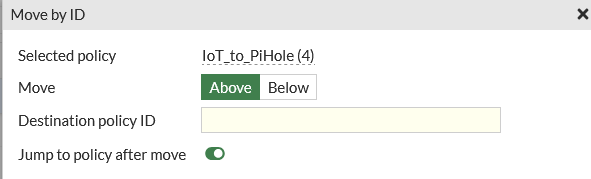
- I guess this just lets us move it without lots of drag / drop
Combining Firewall Policies
- Check the settings before combining firewall policies
- Source and destination interfaces
- Source and destination addresses
- Services
- Schedules
- Security profiles
- Logging
- NAT rules
Best Practices
- Test policies in a maintenance window before deploying in production
- Test policy for a few IP addresses, users, and so on
- Be careful when editing, disabling, or deleting firewall policies and objects
- Changes are saved and activated immediately
- Reevaluate active sessions
- Create firewall policies to match as specifically as possible
- Example: restrict firewall policies based no source, destination, and service
- Use proper subnetting for address objects
- Analyze and enable appropriate settings an a per-policy basis
- Security profiles
- Logging settings
Inspection Modes on Firewall Policies
- Enabling security profiles has an impact on firewall throughput
- FortiGate kernel inspect sessions to enforce filtering (for example, web filter)
- Selecting the FortiGate inspection modes on firewall policies:
- Flow based
- default mode
- Optimizes performance
- Proxy-based
- Processed by CPU
- Provides thorough inspection
- Flow based
Inspection Modes - Proxy-Based Visibility
- Proxy-based inspection mode is available on most FortiGate devices
- Some security profiles are available only in proxy-based inspection mod such as:
- Video filter
- Inline CASB
- ICAP
- Web Application Firewall
- Data Leak Prevention (available on the CLI)
- Proxy-based inspection is not available on low-end platforms with 2GB of RAM or less
Logging
-
By default, set to Security Events
- Generates logs based on the applied security profile only
-
Can change to all sessions
-
The logging is done differently on Deny rules
Log Violation Traffic
config system setting
	set ses-denied-traffic [disable | enable]
end
config system global
	set block-session-timer [1-300]
end
Monitor Traffic Logs
- FortiGate supports storing all types of logs in several log devices
- FortiGate local and cloud
- FortiAnalyzer local and cloud
- Syslog
- View traffic logs in:
- Log & Report -> Forward Traffic
- Apply filter to display relevant logs
- Select the source of logs
- Specify the historical time frame
- Log & Report -> Forward Traffic
- Right click firewall policy and view matching traffic logs
NAT
- Method of translating IP addresses in a packet
- If ports are also translated, it is called PAT
- Benefits:
- Real address is hidden from external networks
- Prevents depletion of public IP address space
- Private address space flexibility
- Types:
- SNAT
- Translates source IP address and source port
- Enabled on firewall policy
- DNAT
- Translates destination IP address and destination port
- Requires VIP object on firewall policy
- SNAT
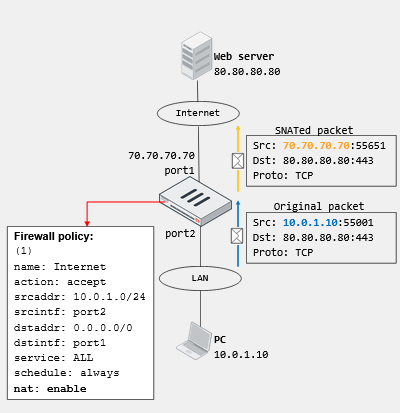
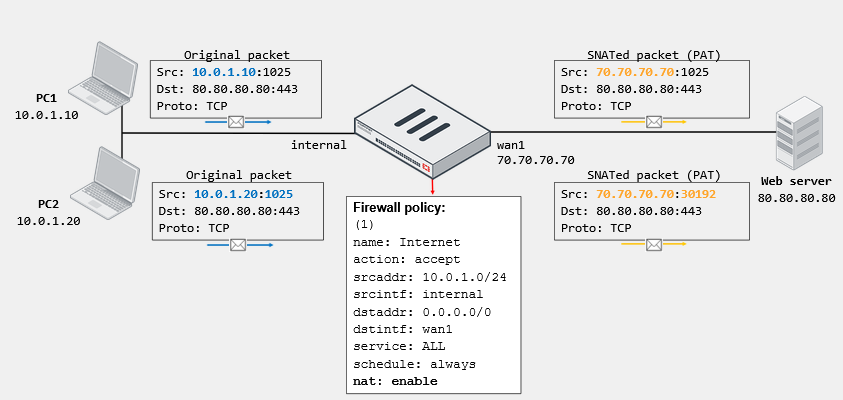
Firewall Policy SNAT
- There are two ways to use SNAT traffic:
- Use the outgoing interface address
- Using a dynamic IP pool
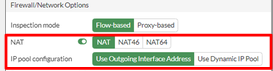
Firewall Policy SNAT Using the Outgoing Interface
IP Pools
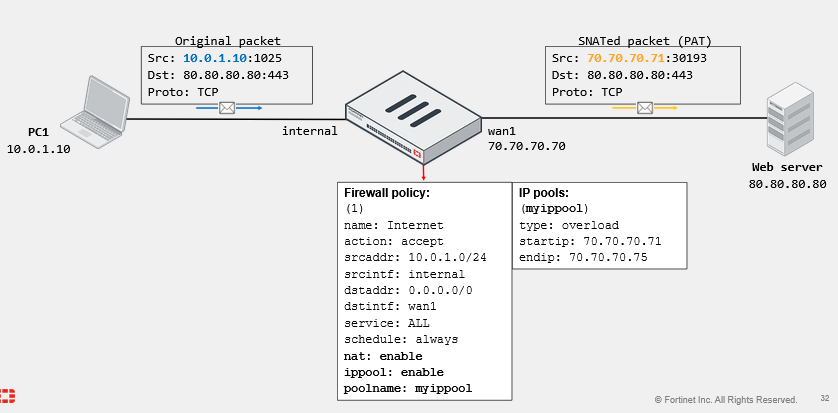
- IP pools define a single IP address or a range of IP addresses to be used as the source address for the duration of the session
- IP pools are usually configured in the name range as the interface IP address
- There are four types of IP pools:
- Overload (default)
- one-to-one
- Fixed port range
- Port block allocation
- IP Pools are configured in Policy & Objects -> IP Pools
IP Pool Type - Overload
- A many - to - one or many - to - few relation is used.
IP Pool Type - One-to-One
- Assigns an IP pool address to an internal host on a first-come, first-served basis
- Packets from unserved hosts are dropped if there are no available addresses in the IP pool
VIPs
-
DNAT objects
-
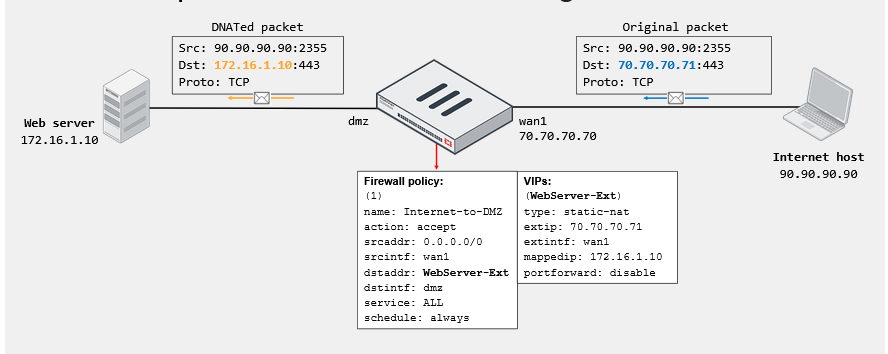
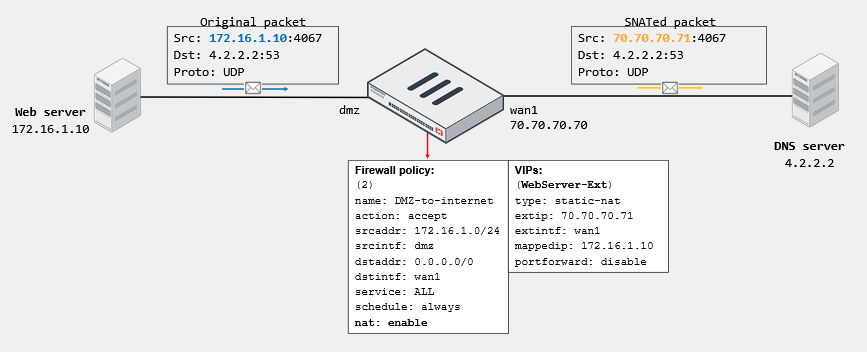
Default type is static NAT
- One-to-one mapping, applies to both:
- Ingress traffic (DNAT: use internal IP as NAT IP)
- Egress traffic (SNAT; use external IP as NAT IP)
- Reference IP addresses or FQDN objects (set type to FQDN)
- One-to-one mapping, applies to both:
-
Enable Port Forwarding to:
- Redirect traffic destined to external IP and port to mapped internal address and port
- Reuse external IP on multiple VIPs
-
Located in Policy & Objects -> Virtual IPs
-
Think of DNAT as a reverse proxy, essentially
- We create DNAT to let external users hit a private IP from our public IP
- Port Forwarding then allows us to do it on the port as well
VIP Example - Static NAT - Incoming Connection
VIP Example - Static NAT - Outgoing Connection
VIP Example - Port Forwarding - Incoming Connection
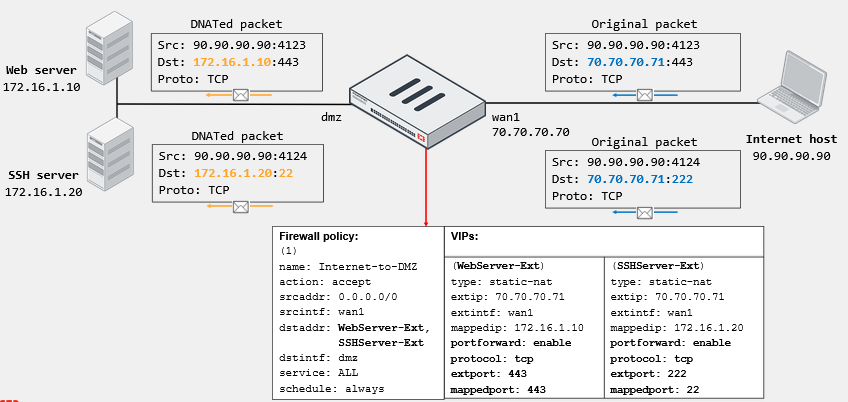
VIP - Matching Policies
-
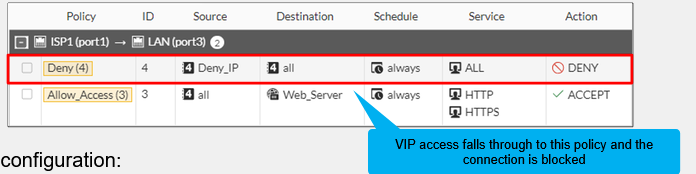
Default behavior: Firewall address objects match VIPs
- Blocks an egress-to-ingress connection, when the deny policy precedes the allow policy with the VIP
- The CLI command
match-vipis available only for firewall policies with the action set to DENY
-
VIP policy (WAN to LAN)
-
CLI configuration
config firewall policy
	edit <deny policy ID>
		set match-vip enable
	next
end
- Note: match-vip is enabled by default. If it were disabled, the above image would allow anybody to hit the web server, as the VIP object is not a part of 'all'
ARP Reply Option in VIPs and IP Pools
- Enabled by default; instructs FortiGate to reply to ARP requests for external address
- Sometimes required to overcome routing misconfigurations
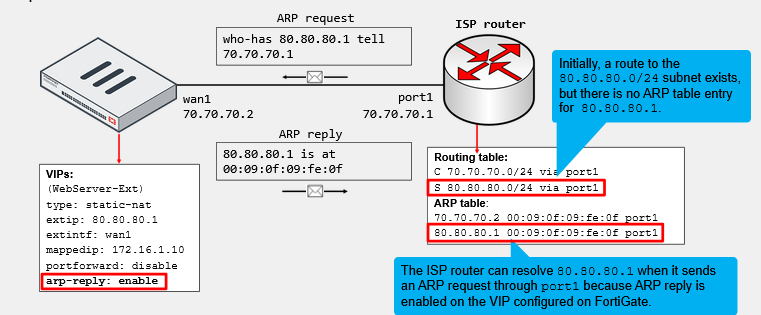
- Pretty much, allows external clients to ARP for VIPs
NAT Implementation Best Practices
- Avoid misconfiguring an IP pool range:
- Double-check the start and end IP addresses of each IP pool
- Ensure that the IP pool address range does not overlap with addresses assigned to FortiGate and hosts
- If internal and external users are accessing the same servers, configure your DNS service so internal users resolve to the destination internal address
- Don't configure a NAT rule for inbound access unless it is required by an application
- Schedule a maintenance window to make changes on NAT configuration