IPS
- IPS components include:
- IPS signature databases
- Protocol decoders
- IPS engine
List of IPS Signatures
- Create new IPS sensors and view a list of predefined sensors
- Security Profiles -> Intrusion Prevention
Configuring IPS Sensors
- Add individual signatures
- Add groups of signatures using filters
- Security Profiles -> Intrusion Prevention -> Create New
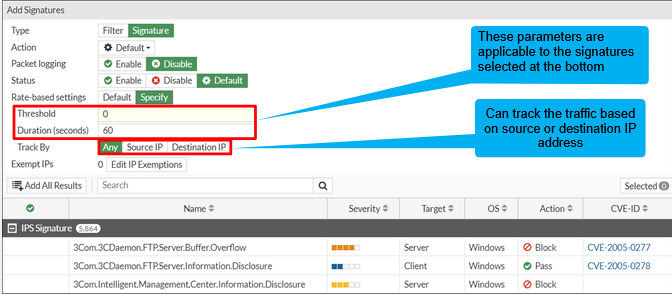
Configuring IPS Sensors - Rate-Based Signatures
- Add rate-based signatures to block traffic when the threshold is exceeded during a time period
IPS Sensor Inspection Sequence
- New entries are placed at the bottom of the liste
- Filters and signatures are processed in sequence
- Place the most common ones at the top
- What if there is a ton of false positives?
- We can set a specific signature to 'Monitor'
Configuring IP Exemptions
- Only configurable under individual IPS signatures
- Security Profiles -> Intrusion Prevention
- Double-click Exempt IPs column
- Specify source / destination
IPS Actions
- Security Profiles -> Intrusion Prevention
- Packet logging copies the packets for later analysis
- Requires extensive resources
- Actions include
- Allow, Monitor, Block, Reset, Default, Quarantine
Enabling Botnet Protection
- Security Profiles -> Intrusion Prevention
- There is a row labeled Botnet C&C
- Disable, Block, Monitor
- Botnet database from FortiGuard included with valid IPS license
Applying IPS Inspection
- Policy & Objects -> Firewall Policy
- Enable IPS
- Set deep-inspection for encrypted protocols
- Log all security events
IPS Logging
- Log & Report -> Security Events -> Intrusion Prevention
Troubleshoot IPS High-CPU Usage
- CLI command to troubleshoot high CPU use by IPS engines
diagnose test application ipsmonitor <Integer>

1: Displays IPS engine information
2: Toggle IPS engine enable/disable status

5: Toggle bypass status

99: Restart all IPS engines and monitor
IPS Fail Open
- Fail open is triggered when the IPS socket buffer is full and new packets can't be added for inspection
config ips global
	set fail-open < enable | disable >
	...
end
-
IPS fail open entry log:

-
When troubleshooting IPS fail-open events, try to identify a pattern
- Has the traffic volume increased recently?
- Does fail open trigger at specific times during the day?
-
Create IPS profiles specifically for the traffic type
- An IPS sensor configured to protect Windows servers doesn't need Linux signatures
- Disable IPS on internal-to-internal policies
Application Control
- Uses the IPS engine in flow-based scan
- Detects and acts on network application traffic
- Appropriate for detecting peer-to-peer (P2P) applications
Peer-to-Peer Architecture
- Peer-to-peer (P2P) download
- One client
- Many servers
- Dynamic port numbers
- Optionally, dynamic encryption
- Hard to block with traditional firewalls
- Requires more sophisticated scanning
Application Control - Hierarchical Structure
- Application control signatures are organized in a hierarchical structure
- The parent signature takes precedence over the child signature
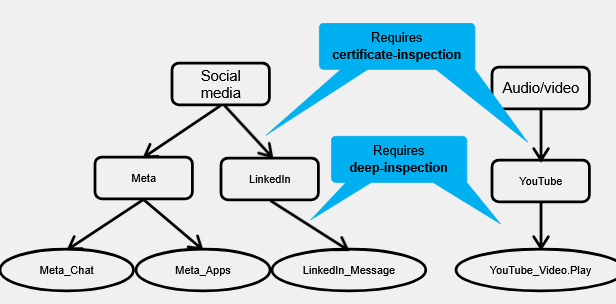
List of Application Signatures
- Security Profiles -> Application Control
- View Application Signatures
Filters Actions
- Security Profiles -> Application Control
- Monitor, Allow, Block, Quarantine
- Quarantine is block but with an expiration time for blocking
- Monitor is better for initial, then fine tune to a different action
- Monitor, Allow, Block, Quarantine
Configuring Additional Options
- Security Profiles -> Application Control
- Enable Network Protocol Enforcement
- Create new -> enforce protocols run over specified ports
- Block applications detected on non-default ports
- Allow and log DNS traffic
- Replacement messages for HTTP-based applications
HTTP Block Page
- Application control HTTP block page
- Customize replacement message in System -> Replacement Messages
- Gives diagnostics on what was blocked and its categories
- Application, category, URL, policy
Scanning Order
- Security Profiles -> Application Control
- The IPS engine identifies the application
- The application control profile scans for matches in this order:
- Application and Filter Overrides
- Categories
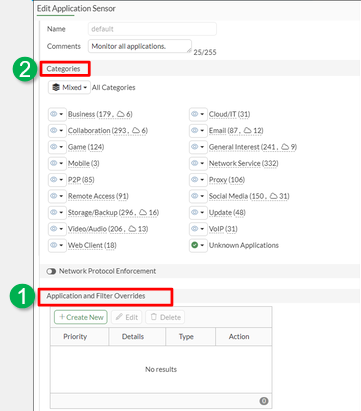
Order of Scan and Blocking Behavior (Scenario 1)
- Security Profiles -> Application Control
-
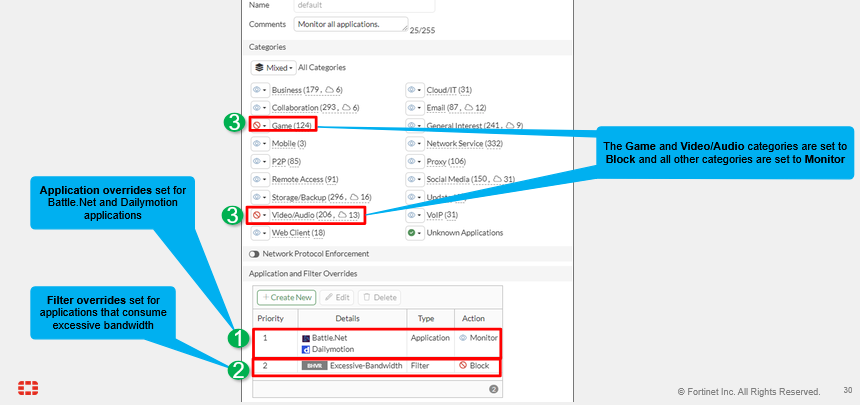
We have category blocks on games and video/audio
-
We have application / filter overrides doing:
- Allow battle.net and dailymotion
- block excessive-bandwidth
-
So, the games are allowed. Web filtering can block further down line, though. Application control happens before web filtering.
Order of Scan and Blocking Behavior (Scenario 2)
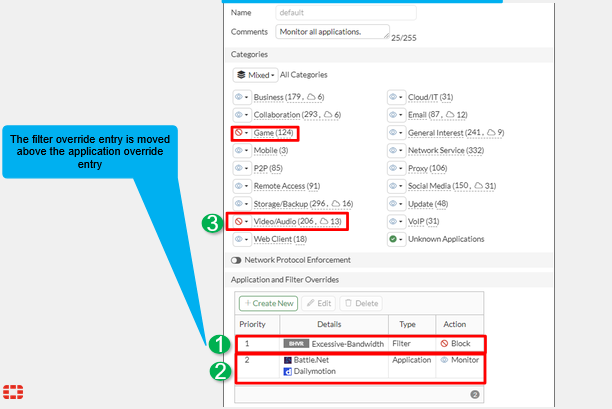
- In this example, Dailymotion is now blocked because it is in the excessive-bandwidth category, which is hit first in the override
Applying an Application Control Profile
-
You must apply the application control profile on a firewall policy to scan the passing traffic
-
Enable logging for security events or all sessions to log application control events
-
Enable the application control, enable deep-inspection, enable logging
Monitoring Application Control Logging
- Log & Report -> Security Events -> Application Control
Troubleshoot Traffic Matching Application Control Profile
-
Apply application control only to the traffic that requires it, and enable logging
-
Review the logs and modify the configuration according to observations
-
Dashboard -> FortiView Applications
-
Click on a hit and click 'Drill Down'